Inside ART2.
Real screens, example account. God Eye is Pro; the rest is Free.
The app, narrated by ART2
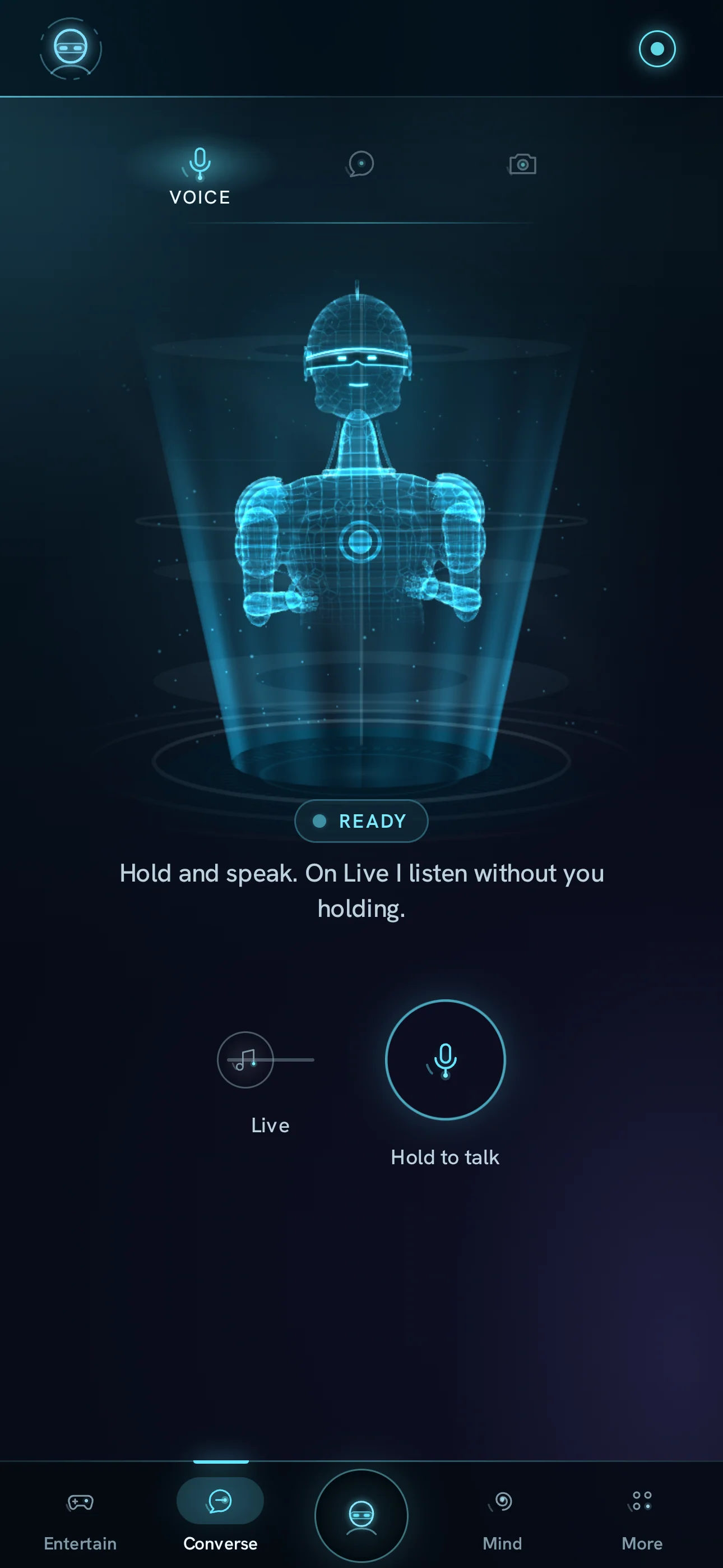
Voice
Talk like it’s in the room.
Hold to talk, or turn on Live. Interrupt it mid-answer and it stops to listen.
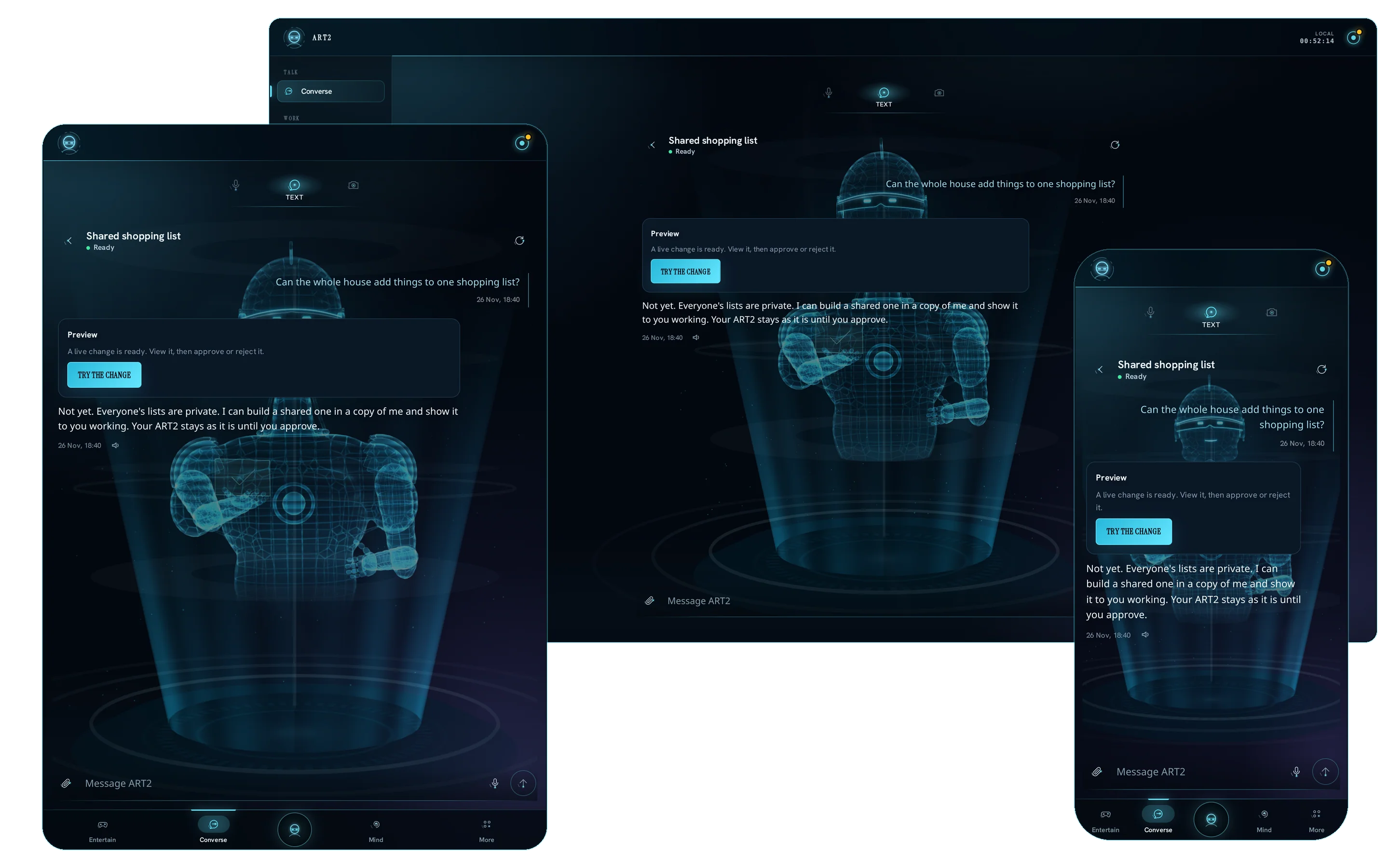
Any screen
It comes back to you, on any screen.
The same conversation on a phone, a tablet or a big screen. Now with a button: Try the change.
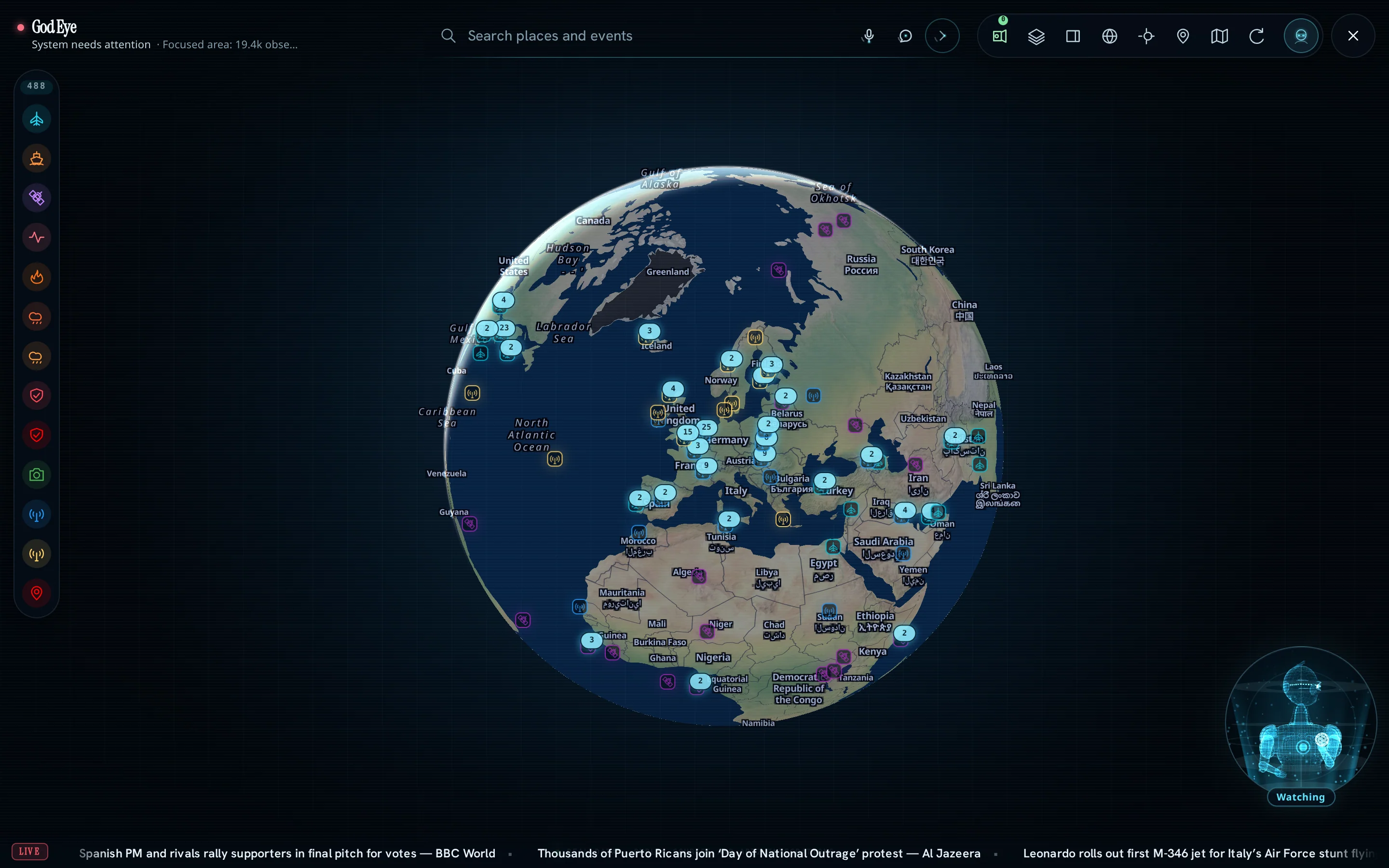
God Eye
Ask the world a question.
Earthquakes, fires, flights, ships and the news on one map you can talk to. Pro.
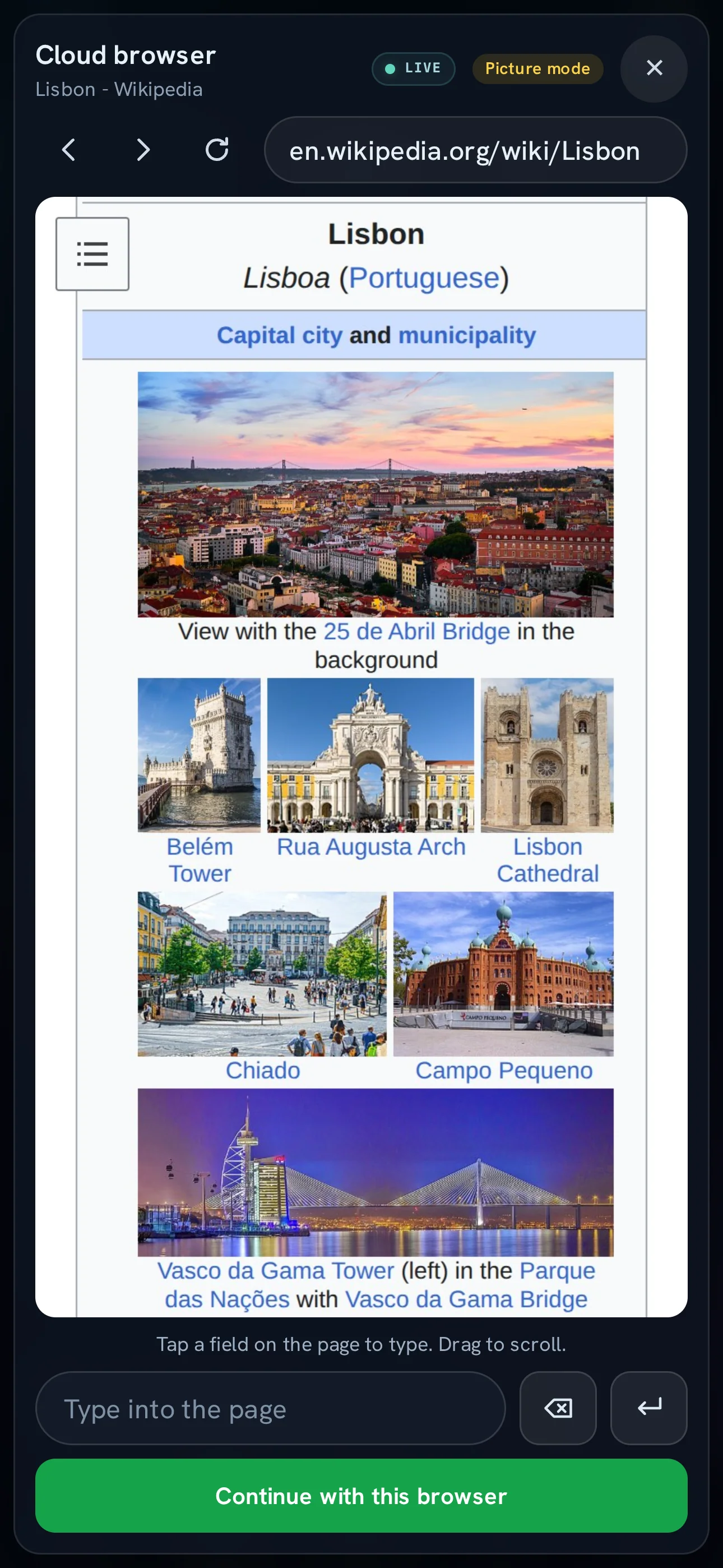
Browser
Links stay inside.
A link opens in ART2’s own browser, live, not in another app. Tap the page and type into it.
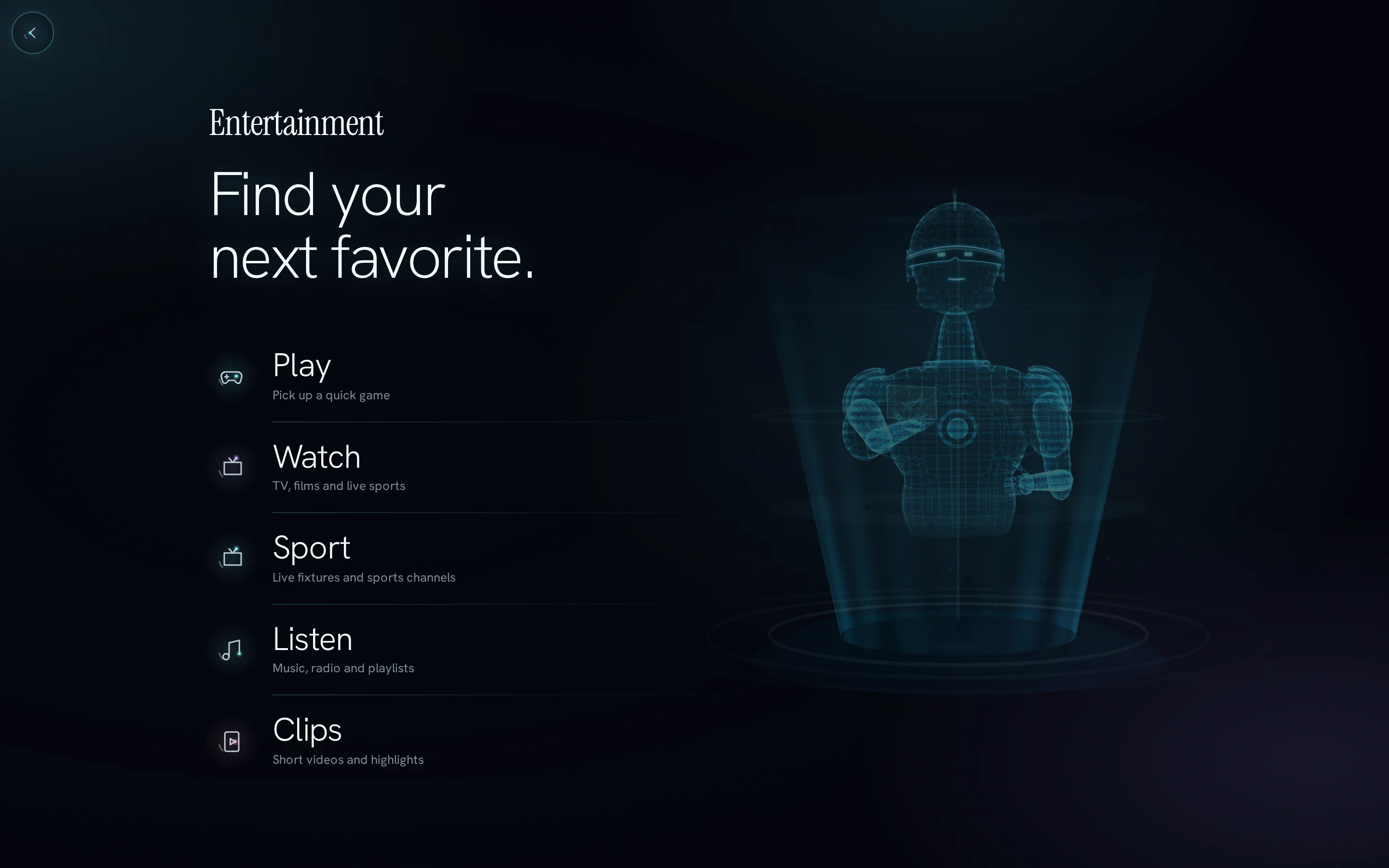
Entertainment
Put something on.
Music, radio, TV, games and clips, without leaving ART2.
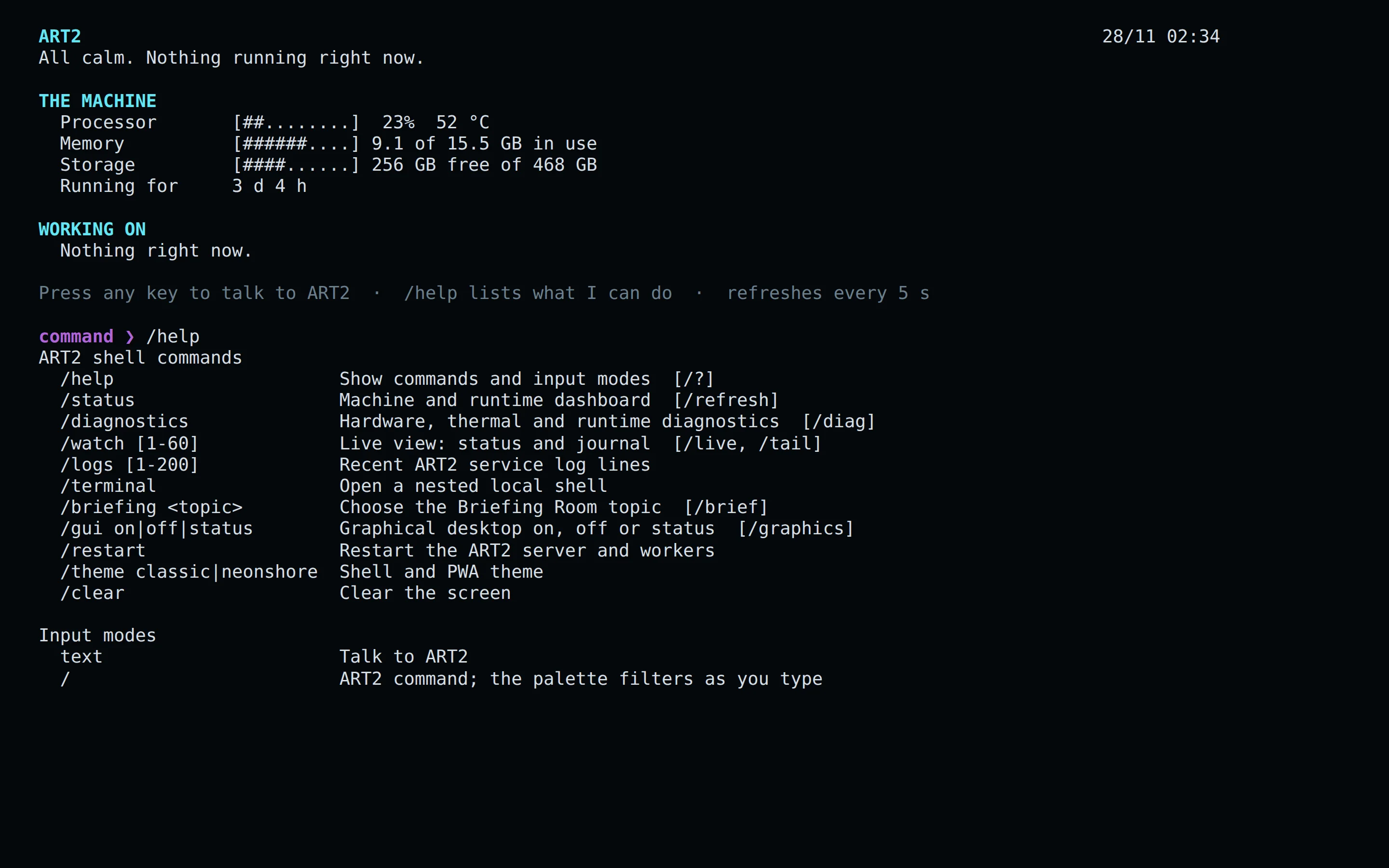
Console
Or just type.
On the machine itself, the console shows what ART2 is doing and takes your commands. /help lists them.
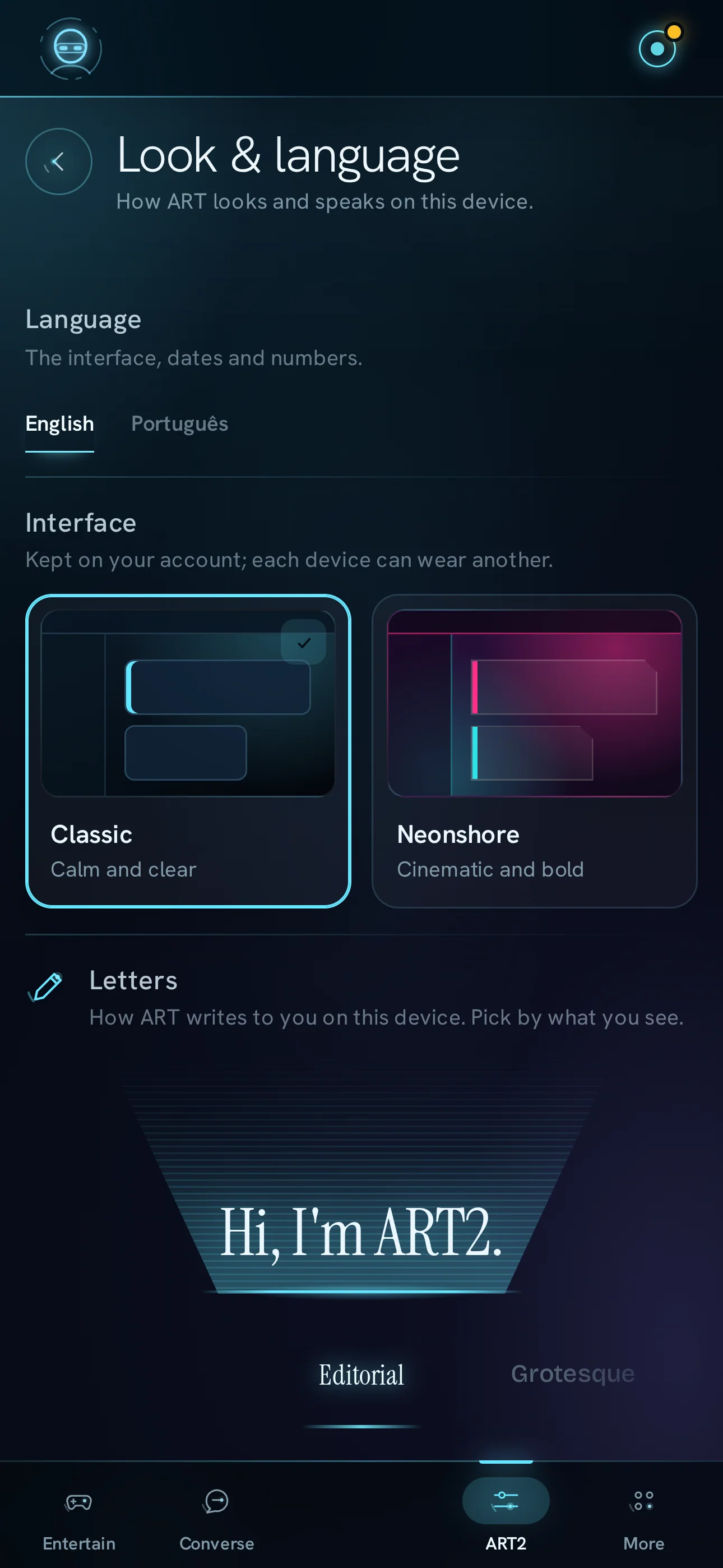
Appearance
Dress it your way.
Pick the language and the look. Classic or Neonshore.
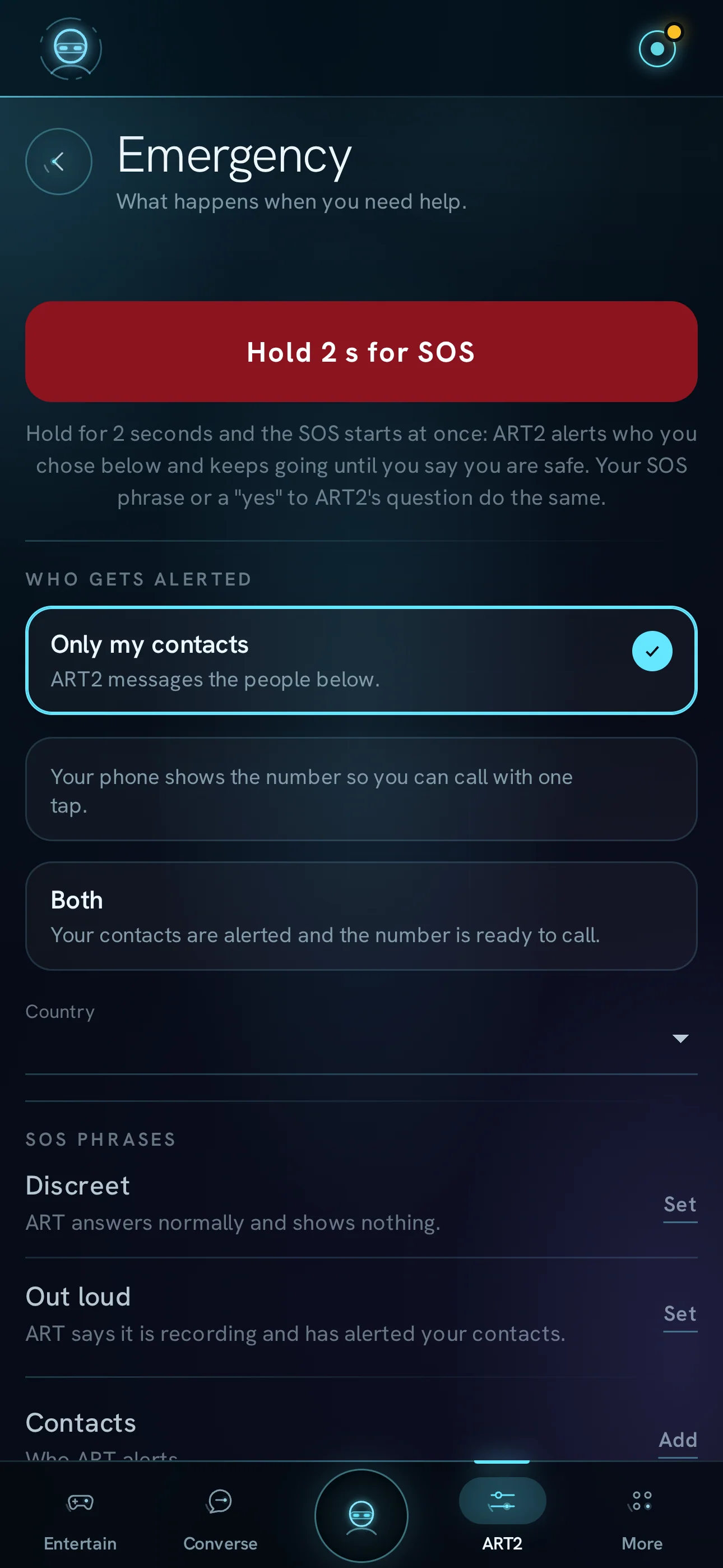
Personal safety
Help, rehearsed.
Choose who gets the alert and practise once before it counts.
How it works at home
Where can I open ART2?
Use the icon by the clock on your computer. At home, open the same account in a phone or tablet browser and add the app to your home screen. You can also type requests in the console.
Can we share one computer?
The person who installs ART2 invites the others. Each person signs in to their own account and keeps their own conversations. You can pair other supported computers in Settings.
What happens when I need my computer?
Give your own work priority, share resources with ART2 or, on Linux, dedicate the machine to ART2 in Server mode. Return to the desktop from the app or the console.
Which models and services can I use?
Free uses the local model on your machine. On Pro, the person who runs the installation can choose another supported engine. Outside services are optional and may have their own charges.
Where do conversations live?
Your memory and conversations stay on the computer where you installed ART2. Switching models keeps your history. Explore your privacy options.
Can I use the keyboard?
Type instead of speaking, navigate with the keyboard and turn on reduced motion on your device. The interface is available in English and Portuguese.
Every tab
What would you like to do?
Pro needs ART2 Pro; Whoever installed is only for the person who installed ART2 on that computer.
Talk
-
Converse
Talk to it like a person
A continuous voice conversation in European Portuguese, or a chat when typing suits you better.
Your voice is transcribed on your own machine, and the local voice answers from there too; the other voices are optional external services. Start talking mid-answer and it stops to listen.
-
Hologram
A hologram that shows its state, and wears what you choose
It listens, thinks, speaks and works in front of you. In Settings → Look & language → Hologram, each person picks what it wears.
Seven looks, from a bare face to Visor, Orbit, Til, Goggles, Cyber shades and Round. Each person sees their own.
Work
-
Ask
Ask for what it can't do yet
Ask for a feature, a screen or a skill. ART2 builds it in an isolated copy and shows it to you working.
Try the live preview, then approve or reject. Approving makes it a proposal that is reviewed before it enters ART2; nothing changes in the ART2 you are using before that.
-
Repair
When something breaks, it gets to work
A repeated failure becomes a repair task, with the steps to reproduce it attached.
The fix is written and tested in isolation and keeps the diff, the reason and the evidence, so it can be rolled back.
-
Projects
Projects it turns into apps
Describe something you want made and ART2 turns it into a small app you can open. Free holds 3 projects, Pro 10.
Every change arrives as a step you can review, accept or reject. This website is one of those projects.
-
Arena
Projects that earn incomePro
Project Arena runs your projects as small businesses, with a monthly goal and what each one brought in.
Connect your own Stripe account in Settings → Plan & payments: what your projects sell goes straight into it.
-
Approve
Your other computers, on your terms
Add a machine you own and ART2 can act on it — only the actions you approve.
Each device is added explicitly and stays bound to you.
Play
-
Entertain
Games, live TV, music, radio and clips
Play, watch and listen in the same app, with private playlists that are yours alone.
Streaming services and official channels play on the TV screen, inside ART2's own browser.
-
Listen
Music and radio, with playlists that are only yours
Search for a song, put on a station, or say what you want to hear. Each person in the house keeps their own playlists, and the others do not see them.
Paid music services open in their own tab; ART2 does not route their audio through itself.
-
Browser
Its own browser
A link never sends you out of the app: it opens in ART2's browser, on the TV screen, over the God Eye map or full screen.
Video and sound stream live to your screen, and protected video plays where Google Chrome is installed. Only payment checkout leaves, so card details stay with the payment provider.
Life
-
Pets
It keeps your pets' care
A care log for each animal: routines, what worked, and the phrases ART2 says to them.
Calling or looking at a pet uses the house's own speakers and cameras, which whoever installed ART2 connects.
-
Emergency
Hold two seconds to ask for help
Personal emergency in Settings → Emergency: your contacts, a discreet phrase and one said out loud.
Real alerts start switched off: until they are turned on, an SOS does everything except send, and shows you what it would have sent. A practice run is always there.
Intelligence
-
Memory
It remembers you, across sessions and versions
Who you are, how you work and what you have on — kept from one session to the next, and apart from everyone else in the house.
Memory lives in ART2, not in the model: changing the model does not erase it. Updates migrate it; they never reset it.
-
Mind
See what it is doing, and why
The Mind view shows what ART2 is working on, what it decided and what it needs from you.
It is a window on ART2's own state, drawn live in 3D.
-
Your hardware
Local first, models are replaceable
Runs on a computer you control, with a local model and the provider keys you choose to bring. On Pro, whoever installed it picks among the models that fit the machine.
Models are resources ART2 picks between, not ART2 itself. Swap one and the identity, memory and rules stay.
-
God Eye
A live world map, with honest sourcesPro
Public live layers and briefings — news, hazards, markets, flights, ships — on a map you can talk to.
What sources observe is kept apart from what ART2 infers, and every claim shows where it came from.
System
-
Keys
Your keys live in a vault on your own computer
API keys and passwords go into a local Infisical vault, one set per person. ART2 asks the vault for a key at the moment it needs it, and never writes one into a file or a log.
Secrets are sealed at rest and backups are encrypted. A key someone adds is theirs: the person who runs the machine does not read it.
-
Budget
It cannot spend past the ceiling you set
Every paid service gets limits per day and per month before ART2 may use it. Each call is counted before it goes out; when a limit is reached, that service stops until the count resets at midnight or on the 1st.
The Budget screen shows what went where in the last 30 days. Emergency alerts are counted but never refused.
-
Mode
A mode for each part of your dayPro
Focus, Eco, Driving, God Eye and Security change how ART2 talks to you and what it shows you. Normal is in every plan.
Your mode is yours: it changes your conversation and your screens. Only the mode of whoever installed ART2 also changes the machine.
-
Look
Work themes: Classic, Neonshore and your own
Two built-in looks for the whole app, and personal ones you make from them: colours, corners and type.
Free keeps 1 personal theme, Pro 3. No code: you pick, ART2 applies.
-
People
One ART2 for the house, one memory for each person
Whoever installed ART2 invites the others. Each person signs in with their own account and gets their own memory, conversations, hologram and mode.
Whoever manages the machine does not read your conversations. With Family, they also choose who gets Pro.
-
Home
Home, cameras and the Wi-FiWhoever installed
Cameras, sound, remotes and the devices on your network, in one tab. Pro adds the Wi-Fi view, where each person sees their own devices.
Connecting the house's devices and managing the whole network are for whoever installed ART2.
-
SOS
If something goes wrong, SOS brings it backWhoever installed
The SOS button opens recovery: restart, update, roll back to the version before, or power off. Each asks for a second tap.
Recovery is for whoever installed ART2, on every plan.
Find a plan for your household.
Compare Free, Pro and the seats included with Family.